Showing posts with label General Computer Tips. Show all posts

Three Easy Steps to Run Several Skype Accounts At a Time

Probably you've signed up for a Skype more than once, may be one for your family and friends and other for business clients, etc. So, when you're looking to run Skype program to sign signed in for the 2nd account or so at the same but normally if you just try to run it by going to Programs under Start Menu. You'll can't able to get it run. Today I'm going to show you easily you can run Skype program more than one for other Skype accounts. 

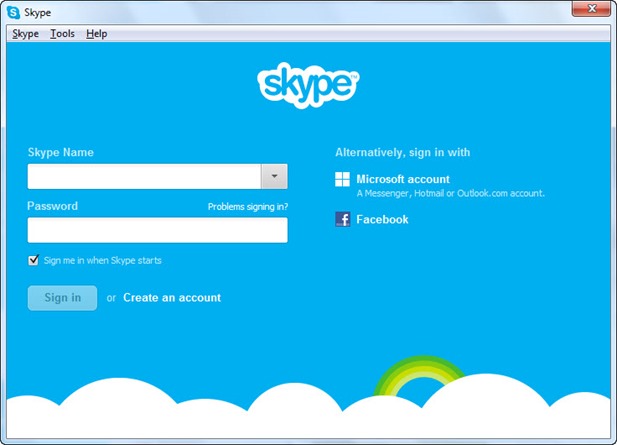
skype-window


I'm supposing that you're using Windows 7. Let's follow the instructions:

STEP ONE: GO TO RUN COMMAND WINDOW
Go to 'Start' Menu > Type 'Run' or simply press 'Windows Key' + 'R' this will open the 'Run' command window.

Note: Whenever you install any program mostly it installs in C:\Program Files or C:\Program Files (x86) I'm assuming your program in install in C:\.


STEP TWO: TYPE THE PROGRAM LOCATION
In the 'Run' command Please type the location like below:

"c:\program files (x86)\Skype\phone\Skype.exe /secondary"


Note: We use '/secondary' so it means Skype program's another instance will run.


STEP THREE: ENTER ACCOUNT DETAILS AND SIGN IN
Now Skype's sign in window will appear just put your accounts detail you're done.


When quitting the one of instance of Skype program then point your mouse cursor to Skype program on the taskbar, you'll able to see the window thumbnails of running Skype programs, just click one of the Skype you want to quit, after that right click on Skype icon on the taskbar then select 'Quit' and then again confirm 'Yes' on the dialog box that will appear next. And this is how you'll close one of Skype program and other will remain open. That's it.

Computer CD buying tips

Computer CD buying tips

Posted by; Khanzaib Ayub


Purchasing a CD-ROM drive is a relatively easy task but can involve some considerations when purchasing.

Technology

Before considering purchasing a CD-ROM, it is also good consider the other available options.
CD-R - CD-R, or CD Recordable, drives allow you to do everything that a standard CD-ROM is capable of doing with the added ability of creating your own CDs. An excellent solution for anyone that is in need of a CD-ROM and backup solution. Tips on buying these drives can be found on our CD-R and CD-RW buying tips page.
CD-RW - Like a CD-R drive, a CD-RW, or CD Read/Write, drive allows you to do everything that a standard CD-ROM is capable of, as well as read and write to a CD-RW disc thousands of times instead of once like a CD-R drive. While a little more expensive, this is another great solution for backups. Tips on buying these drives can be found on our CD-R and CD-RW buying tips page.
DVD - DVD, or Digital Versatile (video) Disc, allows a computer to not only do everything that a standard CD-ROM drive is capable of doing, but at the same time is capable of reading DVD Discs and DVD movies. For users who plan on playing games or watching movies on their computers, this is an excellent addition. Tips on buying these drives can be found on our DVD buying tips page.

Interface

The first and foremost important consideration when purchasing a CD-ROM is the interface that the CD-ROM utilizes, such as IDE, SCSI, USB, Parallel or PC-Card.
IDE/EIDE The most commonly used interface with IBM computers, IDE/EIDE/ATAPI interface is found on all IBM compatible motherboards. This interface allows for a total of four devices to be connected.
When considering purchasing an IDE/EIDE/ATAPI CD-ROM drive it is important to verify that you have the available connections for the device.
SCSI The only method with Apple computers and commonly used interface with IBM computers, the SCSI interface allows for a total of seven devices to be connected to the computer and is a faster solution than the IDE/EIDE interface.
If you are user of an IBM compatible computer, it is important that you ensure your computer has a SCSI interface already present in the computer. If not present, you need to install a SCSI card before being able to install a SCSI CD-ROM drive.
USB The USB interface allows a user to install a device and supports up to 127 devices.
Before you can install a USB CD-ROM drive, it is important for both IBM and Macintosh users to verify that a USB port is present on the computer. If not present, an interface card needs to be installed.
Parallel Solution available for PC computers, Parallel CD-ROM drives allow users that may not have the available resources or may have a portable computer to connect a CD-ROM drive.
PC-Card (PCMCIA) Excellent solution for users utilizing an older laptop that does not have a CD-ROM drive to connect a CD-ROM drive to their computer.

Transfer rates

Transfer rates can sometimes be a misleading when looking at purchasing a CD-ROM drive. The transfer rate of a CD-ROM drive is how fast a CD-ROM drive may be able to access the data from a CD. This speed is only going to be noticeable when installing a program or copying large amounts of data from a CD.

Price range

For a CD-ROM drive, not to be confused with a CD-R, CD-RW or DVD drive, the price can vary depending upon the speed and the interface the CD-ROM drive uses.
Standard IDE/SCSI CD-ROM Drive: $50.00 - $200.00
Parallel CD-ROM Drive: $150.00 - $300.00
PC Card and PCMCIA CD-ROM Drive: $100.00 - $300.00

Ready to buy

Once you have reviewed the appropriate information and believe that you are ready to make a purchase of a computer CD-ROM, ensure that the source that you plan on purchasing the CD-ROM from is a reputable source and you have reviewed our section on what to look out for when purchasing over the Internet.
Computer Hope is ready to setup and help you with issues you may encounter during the purchase and installation of your CD-ROM, regardless if you purchase through us or another vendor.
To help support Computer Hope, you can purchase directly through our well-known associate, Amazon. Click the below browse button to begin browsing through the CD-ROM section.
Computer case buying tips

Computer case buying tips

Computer case buying tips

Posted by ; Khanzaib Ayub
Purchasing a computer case is not an important consideration for users who are purchasing a computer from a computer manufacturer as most manufacturers do not offer different types or colors of cases. However, those building a computer may find it important to consider the below considerations.

Color and case type

Today, there are a wide variety of computer case colors and case sizes for the PC. When looking at the case, consider the color of the case and its size. Most cases come in either urban white or white. Additional information about the computer chassis including the color and size can be found on our chassis definition.

Location and size

Before purchasing a computer case you should think out where the computer is going to be placed.
  • Is it going to be on your desk or your floor?
  • Is it going to have enough space at its location with the monitor and other peripherals possibly next to it?
  • If it's in a bedroom will it be quiet enough if left on while you sleep?

Upgrade availability

  • Does the case have enough bays for adding additional hard drives or other drives?
  • Does the case have the availability for slots for additional expansion cards to be placed in?
  • Is the computer easy to work in or will it have to be completely disassembled to get to certain parts of the computer?

Motherboard

If you are assembling your own computer, make sure that the motherboard form factor you plan to purchase is going to be able to fit into the computer case. The standard motherboard form factor today is ATX or microATX.

Power supply

If you are assembling your own computer, make sure that the computer case either comes with a power supply or that the power supply you plan on purchasing will fit into the computer case.
Additionally, if you are building a gaming computer with an advanced video card make sure that the power supply is big enough to support the video card along with all other hardware in the computer. If you cannot find the video card recommended power supply requirement, we suggest using at least a 500W PSU.

Service

Many case manufacturers are creating their cases solely for computer manufactures and may not sell to end-users. If you are building a computer and able to order such a case, it is likely that service or support may be slim or not available as well as long distance. Take this into consideration when purchasing a computer case.
Desktop buying tips

Desktop buying tips

Desktop buying tips
Posted by : Admin Zaib Mirza
Purchasing a home or business computer can be a big and sometimes costly decision. Below is a listing of helpful suggestions on what to look for and what to ask when purchasing a new computer.

New vs. refurbished or used

If you are looking to save money buying a used or refurbished computer can save you money. A refurbished computer is a computer that has been returned to the company has been checked out as good but cannot be sold again as new. All major computer manufacturers have a refurbished section showing all their available refurbished products. Buying one of these computers instead of a new computer can save you hundreds of dollars.
In addition to refurbished computers individuals and companies for various reasons also sell their used computers. When buying these look out for the following.
  • Verify it has no physical damage by inspecting the ports as well as the inside and the outside of the case.
  • Make sure you pay for what you are getting. See the scam section below for additional details.
  • Make sure computer comes with any CD's for the operating systems or programs that are promised to be installed.
  • Realize that many computer manufacturers will not transfer the computer warranty from the old user to you.

Mac vs. PC

The decision between buying a Macintosh and PC computer running Microsoft Windows is always a heated debate. See our Mac vs. PC document for a list of advantages and disadvantages of both of these systems if you're still not decided.

What to look for

When purchasing a computer it is likely that you are going to have a general idea of what you may like in the computer or how you would like to configure the computer. Below is a listing of the various components likely to be found in a computer and recommendations and tips when considering any of the below components.
Case
The case or chassis is often overlooked when buying a new computer. Below are some things to think about regarding the case.
  1. Do you want a desktop or tower case?
  2. Will the case fit on top of or below your desk?
  3. Will the drives be accessible or will they be positioned the way you want them to be positioned?
  4. Does the case support the standards of motherboards, for example, the ATX motherboard standard? This is important if you want to upgrade the computer in the future.
  • Case buying tips page.
CD media
Most newer computers today have an included disc burner in the computer. If you want to make your own CD's or DVD's make sure the computer supports it.
  • Standard CD-ROM buying tips
  • CD-R or CD-RW buying tips
  • DVD buying tips
Hard drive
The hard drive will be the destination of all your files and information. Make sure you get a hard drive with plenty of available space and runs at speeds that don't slow the overall computer down.
  • Hard drive buying tips
Memory
Memory is one of the more important purchasing decisions on a computer. The more memory in the computer, the more efficient the computer is capable of running.
  • Memory buying tips
Modem
Depending on how you plan on connecting to the Internet the Modem may not be that important of a buying decision. Most users today are using broadband Internet, which does not require a modem. However, if this is not available in your area make sure your computer includes a modem.
  • Modem buying tips
Network card
Almost all computers today have a network card or network option on the motherboard. The network card allows you to share files between computers in your home and connect to a broadband Internet connection.
  • Network card buying tips
Processor
The computer processor is and will always be one of the most important considerations when purchasing a computer. Today, with multiple CPU/Processor manufacturers, it may be more confusing as well as more cost efficient to look at all options for computer processors.
  • CPU and processor buying tips
Sound card
Today, the standard sound cards that are included with a computer are sufficient for almost all computer users. However, if you plan on doing sound editing or mixing make sure to look at the sound cards capabilities.
  • Sound card buying tips
Video card
For computer gaming the video card has become one of the most important factors behind memory and processor. If you plan on gaming with your computer make sure your video card GPU and video memory meets the requirements.
  • Video card buying tips

Brand of computer

There is no such thing as a computer manufacturer who has a perfect history with all its users. Therefore when it comes to recommending one brand over another it would be impossible for us to say who's better than the other. Instead we'd suggest relying off the below considerations.
Add-ons
All computer manufacturers give you the option to buy additional accessories when buying a new computer. Keep the below in mind before buying these add-ons.
  • Make sure your buying accessories you actually need. For example, almost all new computers will include a keyboard and mouse. Also, if you're upgrading from an older computer many of your older peripherals and accessories may be compatible with the new computer.
  • If you're buying your computer online, check elsewhere. Many accessories available through the computer manufacturer are sold at a premium price.
Documentation
Most manufacturers today are reducing the amount of documentation included with their computer and substituting that documentation for online documentation. Make sure the documentation found online appears to be sufficient and that software and driver downloads are available if needed.
Hardware
As mentioned in the above what to look for section, make sure the hardware included with your computer meets your needs.
Return
If the computer is purchased at a local retail store, can the computer be returned if unsatisfactory to that store or does it have to be sent to the computer manufacturer? If the computer is purchased online or through a mail order can it be returned if unsatisfactory?
Service
  1.  Is the service onsite, meaning a technician will come to your location to replace or fix a bad component. If the service is onsite, is it for the complete time of the warranty?
  2. If onsite is not offered, what is and for how long?
  3. Can the computer be taken to a local service center? If yes, what is the closest authorized service center?
  4. What is the time frame the service takes to occur? For example, if the computer has a bad component, what is the time it takes for a technician to come onsite and replace that component, or if sent in how long does it take? Finally, if that time frame is not acceptable, what is the company willing to do, for example, are they willing to provide you with a loaned computer.
Software
  1. Does the software include Microsoft Office or Corel Suite? These packages allow you to have a word processor and a spreadsheet. For the most users this should be an important consideration.
  2. Is it the full versions of the software or is the software a demo, trial, or shareware? Many companies will include programs that will expire after 30-90 days and require you to purchase the full program.
Support
While you can always contact Computer Hope for support, manufacturer support is also an important consideration as if an issue arises with the computer you must be able to contact a support representative.
  1. Is support open 24 hours, 7 days a week? If not, what are the hours?
  2. Is support open on holidays? If not, what days are they closed?
  3. What support options are available? Phone? E-mail? Web? Chat?
Upgrade
While this option may not be considered at first when purchasing a computer, it is an important consideration. When purchasing a computer make sure the hardware you may want to upgrade can be upgraded. Common upgrades for most users today include: Memory, Video card, and Sound Card.
Warranty
Finally, does the computer manufacturer offer a warranty? How long is the warranty? Does the warranty cover both hardware and software issues? 
We highly recommend that a computer only be considered if it has at least an one-year warranty. Many cheap computers only come with a 90-day warranty. Meaning if a part goes bad, you pay for the part as well as the service. This may not be an issue for users who just need a cheap computer and are willing to replace parts and service the computer themselves.

Scams

Unfortunately, like anything, it is possible to be tricked or for computer companies to scam you. Watch out for the below common scams.
  1. Make sure you pay for what you are getting - A common tactic is to overclock the processor, memory, or other component. This can be done by anyone with a little computer knowledge. For example, you may buy a 733MHz processor but instead get a 500MHz.

    To determine the processor speed, open the computer and look at the processor itself. Do not look at the processor through a software program or through BIOS as these values can be changed or tricked.
  2. Legal software - When purchasing a computer, make sure it was legal purchased and the CD or other disc and its CD-KEY is included. Many end-users or small computer companies who build or sell computers may not provide you with legal copies of the software, which is illegal and may leave you with a fine or the inability to get updates.
Computer battery buying tips

Computer battery buying tips

Computer battery buying tips

Main batteries
CMOS batteries
Bridge batteries

Main batteries

Laptop batteryThe main battery is the battery used to power laptop computers. When looking to purchase a new main battery from a third-party make sure you're getting the correct battery. Verify the below specifications either from the bottom of the battery or from the computer manufacturer.
  • Type - Get the right battery: Nicad, NiMH, or Li-ion.
  • Manufacturer - Some portables may use a certain manufacturer of battery. Verify if a third-party manufacturer's battery was used. Also, make sure the battery is not proprietary and that it is possible to purchase from a third-party.
  • Voltage - Verify the Voltage of battery, this amount can vary depending on the battery.
  • mAH - Verify the mAH of the battery, this amount can vary depending on the battery.
Warranty
Before purchasing the battery, see if the battery comes with any warranty and how long the warranty may be. This makes things easier if it's defective that it is possible to return the battery for a new battery or for a refund.
Prices
Prices can vary depending on quantity of batteries, size, and the age of laptop. Below is a list of the most popular batteries and their price range in the U.S. Dollar.
1 NICAD Battery: $80.00 to $150.00
1 NiMH Battery: $100.00 to $160.00
1 Li-Ion Battery: $100.00 to $180.00
Where to buy
Your laptop computer manufacturer is the best first place to get a price quote on a replacement battery. After doing this check any of the links below to get a price quote comparison and find the cheapest solution.
Ebatts.com
Batteries Plus
BatteriesInAFlash
Laptop batteries planet
Charge the battery properly
Once you have received the battery if it includes documentation for how to charge it for the first time make sure to follow those instructions exactly. Otherwise it's recommended that you charge the battery for at least 24-hours before use.
Recycle
See the battery recycling section for further information about properly recycling your old defective battery.

CMOS batteries

CMOS batteryThe CMOS battery is used to store system information such as the time and date and should be replaced when receiving error "System battery dead", the computer does not keep the time or date, or if you are losing a dramatic amount of time over a period of time.
Before replacing the CMOS battery you need to know what battery the computer is using. This can be done either by opening the computer and locating the battery or through the motherboard or computer documentation. We suggest visiting a local Radio Shack if you've got the battery but can't identify it or to purchase a new battery.

Prices
Prices can vary depending on quantity of batteries, size, and the age of laptop. Below is a list of the most popular batteries and their price range in the U.S. Dollar.
CMOS coin battery: $1.00 to $10.00
CMOS RTC battery: $2.00 to $20.00

Bridge batteries

The bridge battery is a small battery that holds a charge for a sufficient amount of time while swapping between main batteries. If you believe that this battery is defective or bad, it is recommended that you contact your laptop manufacturer for a replacement part.